Friday, April 30, 2021

Baby Beeb

I received an unexpected message from one of my work colleagues over a weekend. 

"Would Mrs Crashed allow this in the house?"


The Offering


Well, my immediate response was a resounding "Yes!". Better to seek forgiveness than ask permission. :)

There have been many hundreds of words and hours of video produced about the BBC Micro and Acorn Electron. Here are a few links to some of them:

MICRO MEN - (search for this one yourself)
Nostalgia Nerd - The Electron Story

Suffice it to say that the Electron is a cost reduced BBC Micro which, at the time, dominated the UK educational market. The Electron was intended to fight against the cheap and hugely popular ZX Spectrum while trying to capture some of the lucrative games market. It was not a success largely down to its late arrival because of ULA issues. 

My own experience of the Acorn products is, to be honest, a bit thin. My school had a computer (one computer) that was a BBC Micro model B. It was tucked into a cupboard with enough room to fit two kids on tiny wooden chairs. Time was strictly limited and the software provided was somewhat rudimentary. One application I remember asked questions and we input answers and some of my 9 year old compadres spent the lesson teaching it rude words and offensive names (suspiciously prescient of the Microsoft AI debacle). I spent probably less than 1 hour in total on the thing in the whole time I was at the school.

Anyway, a box from my most awesome work colleague duly arrived containing the previously pictured Acorn electron. 


Unboxed and ready for inspection.


First things first, does it work? Now for certain other computers there are extensive lists and descriptions of what tests you should do, what components to check etc before you even think about the merest possibility of considering the outside chance of plugging it in. In this case, nah. The power input is 19vac. Fortunately, I managed to get a 'real' Electron supply from the most awesome and all round good egg @GeezerD205 on Twitter.


Hmm, re-worked end..


Connections to be re-worked...

The power supply is as simple as it could be. A transformer. That's it. Input 230vac, output 19vac. I did a little re-work on the connections inside but failed to take a picture of the results. Suffice to say, I'm happier with my results that the insulating tape that originally covered the wires, and a measure of the output confirmed the expected 19vac (or near enough as there was no load on it when I tested).

Time to plug it in. Does it boot? Yes. A nice satisfying beep, and the composite output sprang into life.


Yay! It boots, and the keyboard works!

I did a quick keyboard test and everything just worked. Nice.

But wait a minute, where's the 'M'? 

Well, that's annoying. Just one key not working. Fortunately, the keys on the Electron use switches and not the dreaded 'membrane'. The switches are actually the same as on the BBC Master and can be dismantled, cleaned and re-assembled. In theory. Something to sort out when I can get out into the garage..

Next, it really needs a bit of a clean. It's not as bad as some of the machines that have crossed my path, but it definitely needs a bit of a spruce up. Time to get the screwdriver out and strip this thing down...


I'm in pieces, bits and pieces.


Grubby Keyboard


Baldwin supervises the initial clean-up


Keycaps - nice and easy to remove


The keycaps were very simple to remove and firmly attached, but not 'break the keystem' tight like they are on my Plus/4. A simple wash in soapy water was all that was needed to get the keycaps clean and then a leave to stand for a few hours to air dry.

While the keyboard was disconnected it was time to have a look at that dodgy 'M' key. The key switches need to be de-soldered from the keyboard circuit board which was fairly simple. Then, in a fit of sensible thinking I de-soldered the right shift key switch and put it in the spot where the 'M' key was. My thinking was that if the right shift key doesn't end up working I can use the left one. 


Back of the keyboard - 'M' key circled

'M' Key removed..


Anyway, I brute-forced the keyswitch open which was a mistake. In actual fact, the two legs that are soldered to the board actually unscrew and allow the two halves of the switch to separate. Inside are the two metal contacts that are pressed together when the key is pressed. 

I cleaned both metal contacts in the switch and carefully re-assembled it. Fortunately, despite my heavy handedness, it screwed back together OK and, even though two of the three plastic clips had broken, the switch unit held together and was simple to solder back into place. 

Initially, the switch didn't appear to work. If I pressed the right shift key it made no difference but then, after a couple of presses, it suddenly started to work. Presumably, by pressing the key a few times, the spring contacts inside re-seated correctly and began to make contact again. Nice. 

And finally, the case was washed in soapy water and left to dry before re-assembly. The results are quite nice. There's no yellowing and it looks almost fresh out of the box.


Shiny. Shiny.

I don't have a simple way of loading any games or other programs at the minute. I'll probably end up getting something but for now I need to get a compatible cassette recorder and the correct cable.

In the meantime, would you believe that the 'P' key has started to act up now. Oh, well. At least I know how to get the key switches apart now. 

Time for some gratuitous motherboard shots:


Mother. Board.

Hmmm, resistors...

Logic chips.

Memory!

I've got the power.

The infamous ULA with early low insertion force socket.

More on the Electron soon. 


Tuesday, February 16, 2021

A Change of Plan

So, I'd been waiting for ages to get some time to sort out a Pi Zero version of the excellent Pi1541 which now supports the Pi Zero (surprise, surprise). I'd got as far as making a nice cable, I had the level converters, I wired it up and even installed the software. All I needed was a suitable Commodore machine to try it on and the only one I have is my trusty Plus/4.

Finally, I got the Plus/4 out of storage, plugged it in and... it didn't work.

To cut a long story short it looks like the PLA has died. So this project is on the backburner pending the arrival of a new, working PLA.

Now what?

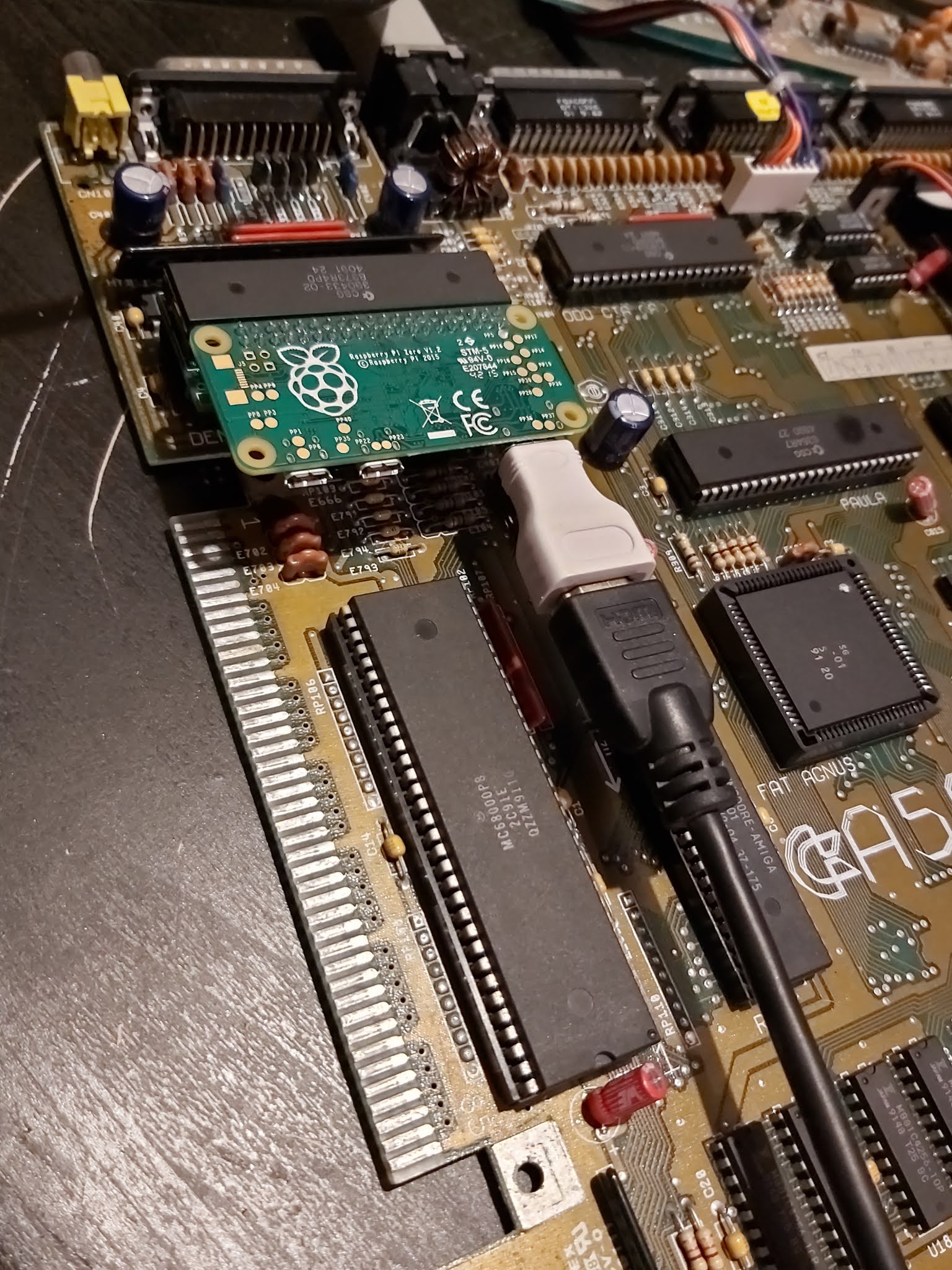
Well, I had noticed the ripples in the Amiga universe regarding a somewhat unbelievable sounding project that would give proper, lag free HDMI output on an Amiga A500, all for the price of a small adapter board and a Raspberry Pi Zero.

Interesting.

Of course, I had to get one of these being a bit of an Amiga nut (it says so in the tiny bio over there ->). The gerber files for the adapter boards are freely available so I could have just used one of the many PCB prototyping services to generate a small run of brand new boards but I didn't want the hassle. As I am no longer what you would call 'young' I also didn't want the hassle of trying to solder the small number of SMD components on to the board that make the magic happen. 

In this case, eBay came to the rescue as I found someone who already had some adapter boards, with SMD components already installed and all for a very reasonable price. I won't put any links here as it's eBay and you can search it out for yourself. So there.


SMD - Too small for my ancient
sausage fingers.


Look at the backside on that.


The only things missing from the board I received (very quickly - nice one) was the pin headers, a chip socket and the 40 pin socket to accept the Pi Zero. I already had a chip socket and a 40pin socket header so I just needed pin headers. And eBay came to the rescue again. Yay!

Finally, I already had a Pi Zero which was originally intended to be the Pi1541. No longer.

Quick summary - this board fits into the Denise socket and the Denise chip fits into the adapter board. The Pi Zero fits into the 40 pin socket. Plug in a HDMI cable. Bob's your Uncle (well, he's my Dad actually).


All present and correct.

Building the board was a bit more of a journey that you'd think so I shall try to put everything here in order so that you don't have to struggle if you do one of these. It's worth noting that there are plenty of videos of people building these things on youtube, including the excellent Jan Beta who had similar issues to me.

So, first, solder in the Denise/Super Denise headers. This should be a header with three pins and, as I found out, it should be right angled. The one I put in was actually straight and I didn't realise that this was an error until later. If they are straight, they stick up (down?) too far and will stop you inserting the completed unit into the chip socket on the A500 motherboard. I didn't have any right angled headers so I had to use a frightening amount of force to bend the straight pins I had install to 90 degrees. Not a fun 30 seconds and not recommended. If you are only using this on a machine with standard Denise or only with a Super Denise you could obviously just short the correct holes together instead of fitting header pins.

Second, solder in the pin headers. These are the pins that will fit into the Denise socket so I made sure to get the narrow, turned pin versions that are less likely to knacker the socket on the motherboard. Make sure you solder them in the right side. The 'soldering' side is the same as the side where the SMD components are with the long pins on the other side. To get them straight I actually inserted the pins with the board into a 48 pin socket so the whole thing was held firm while soldering. This worked quite well but was a bit nerve racking to remove it once I'd finished the solder work. Perhaps I should have used a bread board..


Headers soldered using a
socket as a guide

Next, solder the chip socket on to the adapter board, which is where Denise will eventually sit. This goes on the opposite side to pin headers so you're soldering the legs on the opposite side to where you soldered the pin headers. Make sure you line up the notch in the socket with the notch on the silkscreen on the board. 

Now this is where I had a little wobble because the solder joints from the pin headers actually foul one side of the socket, leaving it a bit skew whiff. To make sure this wouldn't cause any problems later, I carefully raised the other side of the socket so that it sat on the board as level as I could get it, even though this left it standing slightly proud and didn't leave much of the legs sticking through the holes. My socket was a cheap one. Other, higher quality ones might not have this same problem.

Now, solder the 40 pin socket on. Nothing controversial here. Just try to get it on flush to the board and straight. 

Jumpers, Headers and Socket
soldered in.


And from the other side.
Looking good.


There is an additional place on the board for another two pin header which will accept a switch. This is, apparently, intended to force resolutions in certain circumstances but is optional. I left it out.

So, in summary the order of soldering on the adapter board should be:

  1. Denise jumper (right angled!)
  2. Header pins (the ones that'll go into Denise' socket on the motherboard)
  3. Chip socket (for Denise)
  4. 40 pin header socket (for Pi Zero)

And that's it for soldering. Now all I had to do was plug it in and test it.

Installation is very simple. First, the software needs to be put on to the Pi SD card. I freshly formatted the 8Gb card that I had intended to use for the Pi1541. This is massively over the top as the actual software is a few megabytes as it 'bare metal' i.e. no operating system, just the necessary software to do what's needed. This can be grabbed from here. Just grab the latest release and copy the contents of the zip file to the SD card. That's all you need to do.

Next. Find an A500 and get it's top off. (Mine is just a bare A500+ motherboard I use for testing.)


Oh, Mother(board).


Then, find Denise and gently remove her from the socket and put her to one side.

At this point I pushed the Pi into the 40 pin socket on the adapter board. 


Top view (no Denise yet)

Bottom view.

Take Denise and gently press her into the socket installed on the adapter board. 

Then, finally push the whole assembly carefully into the now empty socket for Denise on the motherboard. It should now look something like this:

Installed - Wide(ish) Angle

Close Up.

From the side.

Right. Denise is in place. We are now ready to test. Fetch me your finest HDMI cable! 


Standby for action.

Does it work.....?  Of course. ;)


DMA Design. What could this be?

Oh, yes! More Lemmings.

Title Screen.

Level 1 Lemmings.

This board is AWESOME. If you have an Amiga A500 you HAVE to get this board. It should be a crime to use an A500 without this board. It is just amazing, the pin sharp quality of the picture. These photos just don't do it justice. And for the sake of a simple board and a Pi Zero. WAY cheaper than loads of the current solutions out there. Unbelievable. Just freakin' amazing. 

Get one of these for every Amiga A500 you have. What are you waiting for??

But, wait a minute....

Although this version of the board allows you to select either Denise (OCS) or Super Denise (ECS), it still only supports the OCS screenmodes. But for most users playing games this should not be an issue.

And another thing. I had hoped to show this working on that stupidly huge Sony 40 inch TV that lurks in my workspace, threatening to make my desk collapse with its weight. But it doesn't work. When the screen from the Pi initialises it selects a bizarre resolution that results in a squashed picture with glitches across the screen. I suspect that the TV is sending something odd down the HDMI cable and confusing the Pi. The TV is very old even though it is HD. As a result I will need to test on a few other TVs.

But why haven't you got one for you A500 yet? Go on. Get to it. Go. NOW.


Naked Amiga - A thing of beauty.


Wednesday, January 20, 2021

Mac the Third

I've spoken about the joys of eBay before. The numerous scams and endless 'RARE!! L@@K!!' type items. Bargains are getting harder to find as retro computers skyrocket.

A little while again I began to watch an Apple Mac G4 of the flower pot type. It was a quite a late one and had the 'widescreen' 20 inch monitor. At £49 it was a bargain, especially as it was located in my home town and was marked "Collection Only". I had forgotten about it and it didn't sell. But it was re-listed and I started to watch it again, this time with a bit more of a thought toward buying it.


This might be a stock image...

I waited for a while, and when there was about a week left I decided that I would definitely get it. I looked in the morning,before work, and it was still available. In the afternoon I went to buy it... and it had gone. I'd missed out by a few hours. Bugger.

Fortunately, these types of machines appear to be like buses. There's another one along in a minute. Or at least a couple of days anyway. Another machine appeared, also collection only but this time a few more miles away in the local city. But as this one was also collection only I was fairly confident I could get it without too many issues. 

Sure enough, one 'Buy it Now' click later and I was the proud owner of an Apple Mac G4. It didn't quite have the accessories that the one I missed had had. There were no speakers and the screen was the original 15" 4:3 aspect ratio. It was described as 'for parts' and the seller had specifically said it wouldn't come on any more and he'd given up on it. But no matter. This type of stuff is for repair and fun and isn't for everyday use. Honest.

Anyway, a quick socially distanced trip out (this actually happened around the time that the first human malware lockdown ended and the English tier system started) and an anti-bacterial wipedown later, and the machine was sat on my desk. 

A mouse was included, and a keyboard came a few days later, courtesy of a birthday present from my awesome brother. 

With all bits acquired, it was time to plug in and try a switch on. First up, it doesn't have the original power cable. Now, I'm not too sure about this but, apparently, the original Apple power cable is not quite a standard 'cloverleaf lead' affair (or IEC 60320 C5 to the uninitiated). But the one that came with my machine was a standard cable. Hmmm. So, after plugging it in I hit the power button and.....nothing. Perhaps it IS a different cable? 

Sadly not. The cable I had was standard but many people reported on various forums that this would be fine. So why wasn't it starting?

Next possibility was the worst case. A dodgy power supply. These things are fairly cramped inside - not a surprise given their shape - and if the power supply had dodgy caps then there would be no chance it would start. Double hmmmmm.

Then I read that it might be possible to start the Mac by doing the following:

  1. Remove power cable
  2. Press and hold power button for ten seconds
  3. Re-insert power cable
  4. Press power button
  5. Keep fingers crossed

And it worked! This was great news as it meant that the most likely cause of the issue was a dead PRAM battery. Holding the power button cleared the PRAM settings and allowed the computer to boot. As it turns out, this would also allow the machine to shutdown and boot normally while the mains lead was plugged in to a live socket. But as soon as power was completely removed, it would no longer boot and I had to resort to the sequence above.

So, it works but most likely needs a new battery. Great. What's on it? Well, other than a few personal photos of family, not too much. I took the decision to wipe the hard disk and start from scratch with this. But not before I had installed a new PRAM battery.

Bottoms up!

Bend over....*ahem*

Removing the base reveals the user upgradeable bits on this type of machine. There's a gap for an Apple AirPort card and a memory slot. Sadly, no AirPort card in this one but, no matter. It does have a LAN port. :)

Next, remove the four screws that secure the bottom section to the main part of the base. This is a bit more tricky as there are cables to be careful of. In addition, there are heat-sinks near the back corner that mate together using thermal paste (note thermal paste at the ready in the photo above) which MUST be replaced when it's put back together.


Open wide!

Ohh! Free dust bunnies! And a non-leaky, but clearly dead PRAM battery. The heatsink bit that needs new thermal paste is the silverish shape next to the connector with the yellow cables. 

Removing the battery was simple, if a bit icky because of the dust (good job everyone has masks to hand these days). Next to the battery is the other part of the memory in a nice standard SIMM. With added dust.


"Yes Doctor. I've been feeling 
a bit flat recently."


With new battery added, re-assembly was a reverse of dis-assembly, not forgetting to put the perfect amount of thermal paste in the appropriate location. But would it boot straight away?

Oh, yes. :) And it would now boot even after being completely unplugged. PRAM battery, sorted. 

On to the software. In a previous series of posts, I had a complete nightmare with an Apple Mac Classic II. Given the slightly more modern vintage of this machine I was hoping the experience would be better. And it was. Sort of.

The OS was no problem. I managed to get the existing OS to connect to the internet through the simple action of plugging in a network cable. Then, in a fit of masochism I decided that for the full retro experience, I would download the OS and write the .iso images on the Mac itself. The website I went to had everything I needed and even detected that I was on an old Mac (handily disabling SSL so I could actually connect). Kudos to me indeed. 


I am saluted.

The downloading was not too bad, if a bit slow. Each image came as a 'toast' file. These were extremely easy to open and burn straight to CD (how quaint in these times). I am starting to see why Macs are popular, even when they are this old. I have to admit, it was easy to use, intuitive, and it just worked. Within a couple of hours I had four, perfectly burned Tiger CDs ready to install.


CDs - May contain OSX

Installation was also simple. Boot the machine while pressing either the 'Option' or 'C' key - I can't remember which one worked for me, I think the 'C' key - and it boots from the CD. Follow the instructions. Wait a bit. Swap to the next disk. Repeat. Done.

That was shockingly easy. And way simpler than the Mac Classic II..

So now I have an iMac G4 from 2003. Is it still useful? Weeellllll..... sort of.

The version of Safari included with OSX 10.4 works with a few modern websites e.g. the Google landing page. This blog works reasonably OK but blogger.com, which is used to compile it, does not.


I shall Google it..


Oh dear. :(

The stalwart BBC news website almost worked. But when trying to click on a news story, the text just wasn't there. A bit useless for a news site..


BBC News - Close, but.. no.


The big issues are changes in the way that pages are rendered. More power under the CPU hood means more fancy websites with bigger graphics, sound, advanced layouts using CSS etc etc. Making matters worse, encryption moves on to defeat advances in hacking/cracking. But the browsers on these machines do not. Meanwhile, the move of most websites to https:// instead of http:// effectively renders most of them useless. 

So what to do?

I actually used Safari on it to search for modern browsers for iMac G4s. Would you believe it, a relatively modern variation of FireFox is available. It's called 'TenFourFox'. Ironically, I couldn't download it via the available browser as it could not create a secure connection - the main issue with browsers on machines this old (apart from speed) as mentioned above. Fortunately, the developers behind TenFourFox provide a downloadable app that automatically detects the type of Mac you have and recommends the version to use. 

So I downloaded that, and then it downloaded the browser. No worries.


TenFourFox Downloader in action


BBC News - That's better!


Now I have a 'decent' browser the iMac may be a bit more useful. It is slow, there's no denying it, but there's also something cool about using an 18 year old computer to access the web of 2021. YouTube is definitely off the cards though.

Incidentally, I also installed MS Office on this too. If nothing else, I could use this G4 to write a blockbuster novel. Maybe not.


Sunday, January 17, 2021

Something New.. (and short)

A very quick post today. Most of the stuff I talk about on here is retro i.e. about 20 years old or older. This short post is about something a bit more modern and (urgh) it's related to a laptop PC.

Several years ago, we bought Crashed Jr a laptop to get him through college and university. It has had a a bit of a hard life to say the least. Eventually, it had reached the point where it would not boot into Windows and would display a sad blue screen of death.

Added to that, the laptop would not generate any sound through its internal speakers. And the headphone socket was broken too. The only way to get any sound out of it was to connect USB speakers or headphones/headset to a USB port. Slightly annoying to say the least.

So, it finally landed on my bench. First things first, I tried booting it and it failed. Then I tried booting from a USB stick and that failed too. What to do? Then I remembered I had a SATA 2.5inch external drive enclosure that I had used to recover data from another old laptop. It was a two minute job to remove the hard disk from the poorly laptop, pop it in the enclosure and then plug it into my own, working laptop via USB. This allowed me to access all the files Crashed Jr needed to retain and get them onto my hard disk before transferring them to a memory stick. This was not a fast process and there were lots of files..


(Next time don't put it on a confidential email..)


Once I had all the files copied onto a USB stick, it was time to re-install windows on the poorly unit. I won't bore you with the details. Suffice it to say, it took bloody ages too and it was really annoying. It required completely removing all partition information via the simple method of installing Linux Mint and then starting a boot from a Win10 DVD - which was irritatingly awkward to get running. Several hours later it was done and I could take a look at the sound issue - but not before I spent three hours trying to work out why the bluetooth module was reported as 'Unknown Device'. So much for Plug & Play.

Are you sure you don't want to keep Linux?
Please?


My first thoughts were that the sound issue could be just a windows problem and that the re-install would solve it. Sadly this was not the case and the sound resolutely refused to work on the fresh Windows install. Then I started to think about the headphone socket. It was broken, without a doubt, and I was starting to wonder if the damaged socket could be confusing windows by making it think that headphones were permanently plugged in.

Time to get the screwdriver out.

This laptop was fairly easy to get apart - I'd already got it apart once to remove the hard disk - and in no time I was looking a the small daughter-board that contains the headphone socket. Or should I say 'contained'. It was smashed to pieces and basically fell apart when I touched it. I could have tried to get a new socket to install but it looked particularly 'low profile' and, despite my best efforts, I could not find an exact match. 

I'm in pieces, bits and pieces.

I'd say that's broken..

Thinking about headphone sockets work, they can act like a switch in that without a headphone jack inserted, a switch remains closed. Once headphones are plugged in then the switch is broken and this can be used by a computer/PC to determine where to route the sound.

So, in theory, if I could work out the correct pins, shorting two contacts would trick the laptop into thinking that no headphones were inserted and the speaker would work again. 

I booted the laptop up and opened YouTube in a browser and set it playing some random music. Then I tilted the laptop forward and with the bottom panel still removed, started prodding across the headphone contacts with a handy piece of wire. On my second prod I discovered two things:

1) I was correct

2) The volume was set to maximum

After a quick change of underwear I checked that what I'd done was repeatable (it was) and then removed the daughter-board so I could solder a small wire between the contacts to make the 'repair' permanent. 

Waitaminute.
That's not a headphone socket.

And, voila! Sound now emanates from Crashed Jrs old and battered laptop. There is no headphone socket so any headsets need to be Bluetooth or connected via USB, but at least there is sound. And it correctly switches to any other source that is plugged in via USB etc.

Not retro related in the slightest but still a neat, simple repair that got something old up and running again. :)