Monday, April 18, 2016

Amiga Audio Issues - Part 3


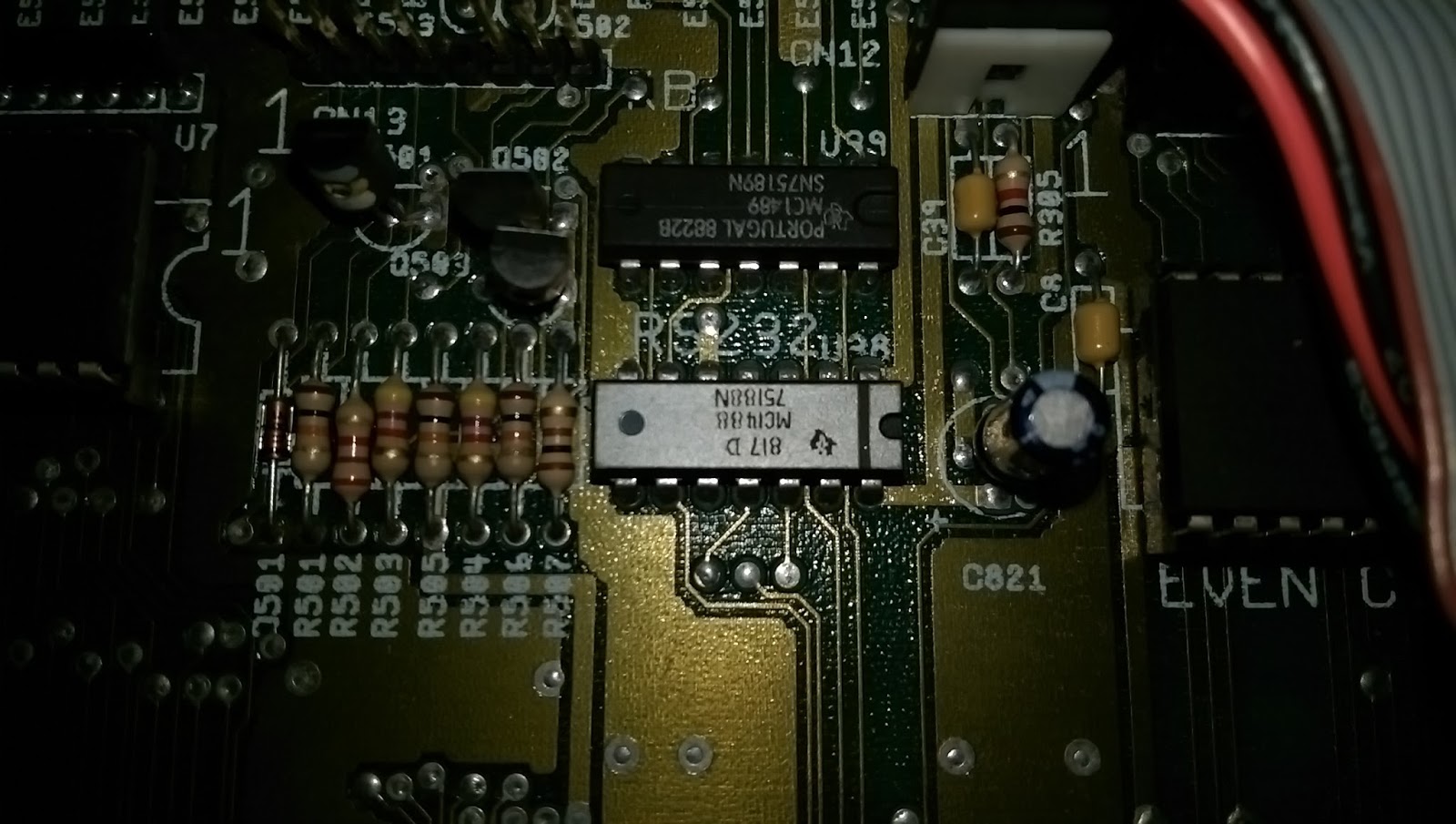
So, the MC1488 chips have arrived. The one in the A500 is actually an MC1488N made by Texas Instruments whereas the ones I have here are MC1488P made by Motorola. There is no difference in the chips at all. In fact, my A500+ actually has an MC1488P.

MC1488P x 5

Having done a lot more reading I understand what the MC1488 is doing in this context. It is normally used in changing TTL voltages to RS232 voltages for serial communications. They contain four 'drivers', a driver being the conversion from TTL voltages to RS232. The MC1489 chip which sits above the MC1488 on the motherboard contains four 'receivers', which convert RS232 back to TTL voltages. In this particular instance, the first input appears is being used as a 'NOT' gate to change the 0v to 5(ish)v from the CIA into a more meaty +12v to -9v.

I won't go into any more detail, partly because it could become very technical but mostly because I don't fully understand it all. Suffice it to say that when the MC1488 has 0v on pin 2 there should be 12v on pin 3 and when there's 5v on pin 2 there should be -9v on pin 3. Given that my MC1488 has 12v - or thereabouts - on pin 3 no matter what the voltage on pin 2, this leads me to believe that there is an open circuit in the chip, hence, replace the chip. :)

So, tops off again chaps...

Unfortunately my phone camera failed miserably and didn't take pictures of the process of me getting the chip off the board. :(  Basically, it involved cutting through the legs on one side of the chip - carefully - then bending up the chip to make it easier to do the same to the other side. A few minutes later, with the help of some solder wick and a pair of good quality tweezers and the chip and it's legs are gone.

The dead MC1488 RS232 line driver chip

This chip was silver for some reason. It's the only time I've seen one like this. In my A500+ it's black and all of the pictures of the various A500 motherboards on the Big Book of Amiga Hardware website show it as black too. Maybe it was special? Either way, it's dead.

Awaiting pin removal

I cleaned the old solder off with solder wick and then cleaned the surface with isopropyl alcohol with some cotton buds. Finally, I used a bit more alcohol and an old toothbrush to make sure no debris or other junk was left nearby.

New MC1488P installed and ready for action

Once the chip was inserted it was a two minute job to solder the fourteen pins. Far easier than Agnus.. Once again, when I'd finished I cleaned the board with some isopropyl alcohol and cotton buds, followed by a final scrub with the toothbrush.

Let's get this sucker tested!

I plugged in the floppy drive, power cable, monochrome composite output (who wants to mess with an A520 at this point? Not me.) and audio out left and right to my PC speakers. The A500 booted without any problem but then guru'ed when I tried to run OctaMED. Like a numpty I had forgotten to put the 512kb expansion in too. OctaMED won't run in 512kb...

Testing - this time with 1Mb.
Take 2.

It worked flawlessly. The difference in sound is now quite distinct with a definite treble and white noise that wasn't there before. Switching the filter on restores the 'muffled' sound, just as intended. Another repair successfully completed. :)

Success! The filter is working!


Thursday, April 14, 2016

Amiga Audio Issues - Part 2 - A Diversion

So, while I was trying to diagnose the issue with the MC1488 I managed to drop the multimeter probes just before I finished and shorted something. The Amiga froze. No big deal. Just restart it. But it didn't restart, instead I was left looking at a dark grey screen.

Dodgy MC1488 Chip (the silver one)

Ah - Dark Grey Screen on Bootup
Don't panic! Stay calm!

No worries. Just pop the top off again, press all the chips into place (the ROM and Agnus made satisfying creaking noises - normally an indication that they're not in properly) and try again. This was the result:


ARRGHHH!!! PANIC!!! ARGHHHHH! I've killed it!!

After a stiff drink and a lie down I came back to it and tried to reason things out. The screen, although rolling, is definitely green. This normally indicates an issue with the chip RAM. That was, however, a bit unlikely since I had been nowhere near that part of the board and it would be a big coincidence that a RAM chip died at that very moment. But I had read somewhere that problems with Agnus could also, in some situations, cause a similar fault.

With a spare Agnus I managed to improve things slightly. But only slightly since I now had a solid bright green screen or random coloured pixels.

Our situation has not improved...
Maybe it was the chip RAM at fault. I had a RAM chip of the same type in my box so I placed it over each existing chip and turned on the Amiga to see if the green screen would go away. Sadly this made no difference.

Appeals to the Amiga group on Facebook (hi guys!) resulted in many suggestions but the one that kept cropping up was to re-seat Agnus. But there was no point since Agnus was as far into the socket as I could push her....(can you see where this is going?)

Out of curiosity, I removed Agnus and then pushed the chip into the socket but only just so the top of the chip was proud of the socket. Sure enough, the Amiga burst back into life. The socket was borked.

In this case, ebay is you friend. Four new sockets delivered for a couple of quid.


Cue montage of me sweating over a steaming motherboard, wiping my brow, looking at schematics, reaching for tools, slurping tea etc. Pictures of my removing the socket are not included to protect the sensitive..

Socket Removed
New Socket Inserted 
Chips Re-installed
If you have a go at this type of repair, and if I can do it then anyone can, here's a couple of tips. Firstly, get yourself some de-soldering braid and a de-solder pump. I had the braid but not the pump so to get the old solder out of the holes for the socket I had to use a pin. Using the soldering iron I melted the solder and pushed the pin through the hole. The solder got dragged through the hole by the pin then cooled down, to be removed with a quick wipe of the iron. 84 times. Get yourself a de-soldering pump. Do it. NOW.

With a new socket, both of the Agnus chips I have now work without any issues so this socket repair is done. :)

Repaired and fully operational.


Friday, April 08, 2016

Amiga Audio Issues

A little while ago I bought an Amiga A500. After having lots of fun cleaning it up and putting in a new ROM (Kickstart 2.04) I tested it thoroughly by playing...er...I mean running the demo of Frontier Elite II. I also played lots of music through OctaMED.

It was during the music that I noticed something a bit off. The audio sounded OK but was a bit muffled. It then occurred to me that the Amiga's audio filter was switched on. But according to OctaMED it wasn't.

For the uninitiated, the Amiga has a hardware low pass audio filter built in which can be controlled by software. It was, allegedly, included by Commodore to improve the sound of sampled audio which was quite low quality (compared to today - in those days it was awesome!). Basically, if you turn the filter on it effectively hides some of the artefacts or 'graininess' of the sampled sounds. In most uses it's turned off and this is indicated by the Amiga by dimming the power led a bit.

So, in OctaMED I tried turning the filter on and off an noticed that it made no difference to the sound of the audio, even though the LED dimmed like it should. Fortunately, RetroGameModz on youtube has a whole 50 minute video on troubleshooting the audio filter. It's worth a look if you are into your Amiga hardware (probably give it a miss if not..). Find it here. Time to get that top off..


Amiga Audio Testing Studio - also known as my desk.

To cut a long story short I followed the advice given in the video and found that the chip U38 looks like it's having 'issues'. When the filter is on then the voltage at pin 2 of the chip should be around 0 volts and at pin 3 should be about 12 volts. This is pretty much what I get give or take a tenth of a volt.  With the filter off the voltage at pin 2 should be near 5 volts and the voltage at pin 3 should be -9 volts or so. In my case though, the voltage at pin 2 is about 6 volts but at pin 3 there is still 12 volts (11.85 to be precise). This is, as they say, a bit of a problem.

Voltage at U38 Pin 2 - Filter On
Voltage at U38 Pin 2 - Filter Off

Voltage at U38 Pin 3 - Filter On (Correct)
Voltage at U38 Pin 3 - Filter Off (Argh! Incorrect. Should be -9v)
I don't pretend to fully understand the circuit but, in simple terms, by having 12 volts from pin 3 of U38 then the transistor Q301 has 12v at the base and at the emitter, meaning that the transistor is off. Because of this, the other side of the circuit has -12v since there is nothing to pull up the voltage. This results in -7v (ish) at the gates of two JFETs resulting both JFETs being 'cut-off' so current is forced to take the path through the low pass filter.

Audio Filter Schematic (part)

I've also tested this on a known working A500 (it's an A500+ actually but the circuit is the same) and the voltage results I get from this more closely match those on the YouTube video since the MC1488 chip is behaving as it should.

So. Is it worth replacing the chip? Probably. They're about 40p from Farnell so it's not like they are obsolete or difficult to get like the A1200 video DAC for example. The only danger is that I damage the board as I try to remove the chip, bearing in mind that these boards are over 25 years old. This particular motherboard is marked as being made in 1989 so he's actually 27!

Old

I do have a concern that the switching voltage at pin 2 of U38 seems a bit high at 6v. I traced it back to the CIA and it all seems OK.

CIA (Odd) - _LED Comes from Pin 3

I suppose it could just be a variation of the components and the different motherboard designs or even possibly a symptom of the faulty MC1488  - although it is a simple single input device. I have a few spare CIAs so I might put one of those in just to verify that the voltage is the same no matter what. Looks like an order to Farnell is also on the cards.

To be continued...


Saturday, February 20, 2016

Amiga A1200 Update


So, after my efforts to restore my beloved A1200, he's been sitting under a chair for the last year or so. But now I have a re-purposed laptop LCD screen that can use composite inputs (another post maybe) so I might be able to get him out a bit more and actually use the hardware rather than emulating through UAE4All.

After dusting him down I noticed something rather disturbing. He was no longer white. Nope. He's gone yellow again. After all that effort, he's back to almost the same colour he was before I started the restoration efforts. This was a rather unpleasant surprise to say the least.

As I left him in June 2014

Yellow again - February 2016

A bit more obvious next to the power supply


A bit of Googling revealed that this is a known issue with the Retr0bright method. Apparently:

"The original damage from light causes degraded or free bromides throughout the case from the fire retardants. Retr0Bright only takes these away from the surface layer. However these bromides can migrate fairly freely through the polymer. They don't need light to do this."

(From: http://www.classic-computers.org.nz/blog/2013-01-15-retr0bright-only-temporary.htm)

In other words, it's only ever going to be temporary. It will turn yellow again, eventually, no matter what you do. Curse you chemistry!

There are two alternatives here. Paint it or buy a new case.

Painting is an option but something that I would probably not bother with. There are loads of pictures of painted A1200s out there. Some are very, very cool. Some are, er, not. The potential for me to bugger it up far outweighs any benefit. I'd rather keep it yellow but unsullied.

Or I could buy a brand new case. Yes, you can buy a new Amiga A1200 case (if you're quick) for the princely sum of 79euro. An amiganut ran a kickstarter to create new injection moulds of the A1200 case and it was successful! Those who pledged to the kickstarter are going to get some pretty cool custom cases. Those of us who didn't know the kickstarter was there have to go to:

http://amigastore.eu/en/468-brand-new-amiga-1200-cases-from-new-molds.html

White is supposedly the only colour available but I suppose it depends on the demand as to whether other colours are made too for us non-kickstarter supporters. The big thing with these cases is that they will be made of ASA not ABS and ASA is NOT affected by UV so no more yellow. Ever. EVER.

Now all I have to do is persuade Mrs Crashed that 79euro is a bargain...


Wednesday, February 10, 2016

PS4 Broken Controller

Recently, I noticed that the right stick on my PS4 controller was starting to behave slightly strangely. If I played Destiny then the character would suddenly take to looking straight down at his feet like a naughty school boy. It gradually got worse until it became unusable, with my Titan character point blank refusing to do anything other than shoot himself in the foot...

Oh dear.

Given Sony's pretty good reputation for quality I had a bit of a Google and found a website that would tell me what to do. Eagerly I entered the serial number of my controller, wondering what molten bronze droplet of wisdom Sony would bestow upon me; what will I do to rectify my problem? And the response was:

Broken. Out of warranty. You need a new one.

At sixty quid for a new one, this was not what I wanted to hear. The controller is just over two years old and I'm not what you'd call MLG (Major League Gamer for the uninitiated) so it's disappointing to say the least that such a major component fails like this..

More Googling. It turns out that this can be a common issue with these controllers. They use a multi axis analogue joystick unit which is actually the same as used in the Xbox One controller.

On to eBay. I was shocked to see how cheap these things are. Five quid for two. From China. UPDATE: Now they're even CHEAPER!

Since I started writing this blog these things are now cheaper!

For that money it was worth a punt so I clicked the Buy It Now button and set down waiting for them to arrive, not expecting them for a few weeks (they had free postage too!). Imagine my surprise when they appeared just over a week later even though estimated delivery time was four weeks. 

Anyway, first things first. Getting the controller apart.  There are four screws which are easy enough to remove.  Then it's a case of prising apart the two halves of the controller.

Four screws - one in each corner.
This was easier said than done to begin with but I started at the front of the controller near the headphone socket and then worked my way around the case with a cut up old credit card.  The loud clicks were very satisfying as the case popped apart.


Cracked it..
A few hefty pulls on the two halves (and a heart-stopping moment when a tiny spring leapt out into the carpet) and the case was properly apart, held together only by a small ribbon cable.

That spring is tiny...
Disconnecting this was just a matter of pulling the cable gently from its socket and there you have it. Two halves of a PS4 Dual Shock 4 controller. (The spring was from one half of the trigger mechanism - I managed to find it again!)

Unfortunately, the bits I need to replace require a bit (lot) more disassembly.  The battery needs to come out first. Fortunately it has a nice easy plug on the main circuit board. Then there's the black battery tray panel underneath that which just has two clips, one on either side. Next is a small ribbon cable for the touch pad on the top of the controller.  Finally, there's a single screw that holds the main circuit board onto the base of the controller.  Removing this screw frees up the circuit board but it is soldered to four wires, two on each side, for the 'dual shock' motors. These are simple motors with asymmetric weights attached to the spindles. As they spin, the controller vibrates.

Those weights on the motors make DualShock possible...
I could have tried to repair the joysticks with these wires in place but I decided to remove them so I had complete access to the board.  I'm really glad I did, otherwise I would have found it much harder to remove the old joystick units.

Talking of which, the joysticks were a real pain in the backside to get off.  The main problem was that there were so many pins to de-solder.  There were four main support pins, three pins each for x and y axis and four more for the micro-switch that activates when the joystick is pushed down (used for running in Destiny and other functions). Having removed as much solder as I could, the old joysticks just would not budge. I had to resort to cutting the two main legs I could reach with my cutters and then demolish what I could of the assembly with a pair of pliers (don't think about it too much..). This made things a little easier but it took a lot more effort than it should have done.  If you're thinking of doing a similar repair yourself I would highly recommend that you look at a solder pump as well as solder braid.  A pump would probably have made light work of the solder I had left after using the braid.  As it was I had to rely on heating the solder and then banging the board on the table to try and knock out the last bits of solder.  It's a good job these things are hardy beasts (except the joystick bit, obviously)...

At this point, I'm committed to this repair.
Anyway, after much swearing and sweating, I was ready to install the new sticks.  It really was as simple as dropping in the new unit and soldering it back on to the board. Twice. Took me less than ten minutes to do both sets of soldering.

Shiny new joystick goodness
Once I'd finished I replaced the actual joystick pads too (included in the price of the joysticks!) since the left one had the infamous rubber peeling issue. 

New pads included too!


Reassembly took a little longer than I anticipated.  First of all, the mini ribbon cable from the touch-pad got caught up and went the wrong way over the strut that the touch pad hangs off. I didn't spot it for a while and I couldn't work out why the case wouldn't close.  With that minor issue resolved I then managed to drop the small rubber barrel that is used to press the 'reset' button through a small hole in the case.

Rubber barrel is the grey cylinder below the battery
Then I dropped the freaking spring again from the trigger mechanism. Finally, after a bit more swearing and sweating I had the thing back together. 

Initially, everything looked OK.  The controller turned on, the buttons worked, the left joystick worked as I could move around the PS4 UI and run games.  So then I ran Destiny and headed to a patrol. The right stick seemed OK (no more foot shooting) and so we had a 100% success, first time.  

Not so fast there. 

To celebrate my success I had a quick game in the Crucible in Destiny.  This is basically player versus player and is a game mode where I regularly, to use the vernacular, board the struggle bus.  I did a Control match which is 6v6, since I normally get on better with this game type. Very quickly I realised that something wasn't quite right but I couldn't put my finger on it.  Then I had it. Looking left was speedy and smooth. Looking right was...not so much.  It was smooth but it was at least 10% slower than looking left.  This meant that there was an imbalance between moving the stick full left and full right just on the right stick (left stick was fine). Bugger.

After some thought I had an idea that maybe I hadn't put the joystick on straight i.e. perpendicular to the main board. This might also explain why there was a slight hint of friction when pushing the stick right when there was none pushing left. I made a vain attempt at re-doing the soldering but a quick inspection showed that there was actually nothing wrong with my installation. Arse.

Brainwave. What if it was the new joystick pad that was causing the problem? So to test my theory I removed it and left the stick without a pad.  This allowed me to see what the effect would be on Destiny in terms of speed of movement without any pad interference. Sure enough, using just the stick, pushing left was fast and smooth, pushing right equally so.  This meant that there was nothing wrong with the stick, rather, the amount the stick moved left was more than the stick could move right. Sh**.

(Wife just walked in and asked what I was doing. I said "I'm doing a blog about fixing my PS4 controller!". She yawned and walked away...)

So, how can I allow the stick to move a little bit further to the right when the pad is installed? The movement is basically restricted by the round hole in the case of the controller.  What if I were to file it out slightly on the right side so that it became a little bit more oval than round? So that's what I did.


Success! The controller now works perfectly. For £5 and a couple of hours work I have saved myself £60 on a not required new PS4 controller. I don't think I could get away with using this controller at a professional gaming competition but who cares. It works.

Take that Sony.


Tuesday, July 01, 2014

Amiga Repair and Restoration (Part 4)

Story so far..  Amiga now white but caps gone bad.  Cap kit ordered and fitted, some caps not the same physical size and, for my Rev 1A board I'm one short.

So, I have one capacitor missing.  Having done extensive research (I looked at the pictures over at bigbookofamigahardware.com - yes it is a real site) it seems that the capacitor at C460 is not required.  It only appears in one photo of the Amiga A1200 motherboards - Rev 1B - and even then, a quick google shows that not all 1B's had it anyway.  I can only assume that it is one of those things that has no effect on normal operations if it's removed.

Back to the soldering iron then.  Before:


Missing C407
And after:

C460 moved to C407
So that's it.  We're ready to re-build this thing and switch it on.  But wait I hear you cry.  What about mass storage?  Surely you're not going to re-instate that primitive 3.5 inch hard disk that takes up so much space and requires a huge amount of power?  Well, no.

The nice thing about the A1200 is that it has a standard IDE connector which was originally intended for 2.5inch hard disks.  The bigger 3.5 inch units are compatible (and just about fit in the case) with the correct cable but they aren't ideal.  It would be much nicer if we could just use some sort of solid state drive to reduce power consumption and take up less space inside the case.

Well we can.  For a few quid off ebay you can get a simple adapter that allows you to plug in a memory card.  The most common variety of these actually use Compact Flash memory cards.  They're not quite so ubiquitous as the SD cards but are, apparently, still popular with professional photographers, presumably because there's less chance of losing them if you sneeze.

Anyway, the nice postman delivered this:

Compact Flash, here we come!

As you can see, it's really simple.  A short IDE ribbon cable to the adapter itself that has the memory card inserted.  This particular one has Workbench already installed (along with some useful utilities) so that I don't have to faff around with Install disks.

Goodbye huge hard drive!
Installation was just a case of removing the hard disk and associated 2.5 to 3.5 connector cable and the 'Y' power cable that was plugged into the floppy drive.  I put some insulating tape on the bottom of the adaptor board, just in case.  The new 2.5inch IDE cable was plugged in and the install is complete.

Easy peasy installation
And that really is it.  We're done.  Time to make use of the new case screws that I also bought with the capacitor kit.  But now I can actually do them all up as there isn't a huge 3.5 inch hard drive squashed inside.  Yay!

And here he is, now almost as white as the day he was made with a super low power hard drive and a shiny new set of case screws.  Booted first time and the audio fix works a treat.  Nice.

Restored and ready for another 20 years

Epilogue

I know that some of you may be wondering why on earth I would want to spend all this time and effort on an obsolete computer from the early 90's.  It doesn't even connect to the internet (although it could - that's another story...) and has no USB or anything.  I would ask the same question of why people spend thousands of pounds restoring classic cars.  They're no better than modern cars and, in some cases, significantly worse (dodgy E-type brakes for example) and yet people still treasure these cars.

The Amiga WAS the first 'multimedia' computer ever.  It was a multimedia home computer before the term was even really used and so far ahead of it's time it is easy to wonder what might have been had Commodore (US) had a clue as to what they had on their hands.  The old joke goes (and I will repeat it) that if Commodore marketing were asked to come up with a slogan for KFC the result would be 'Warm Dead Bird'.

From a practical point of view this exercise has been extremely useful.  My antics with soldering surface mount components for example.  There are two basic android tablets in the house and both had developed a problem charging.  From the contorted way that the charging cables had to propped or rolled or leant it was obvious that the charging ports were in trouble.  A few minutes with a guitar pick, half a chopped up bank card and a small screwdriver meant that I was able to confirm that the micro USB ports had separated from the main board due to the solder fracturing (lead free thanks to the EU).

There's not enough sticky tape here.....

Dodgy USB port ahoy!
A couple of hours later I had repaired both tablets, saving a lot of hassle from owners of said tablets and also reducing the risk that it would happen again.

Thanks for reading.


Saturday, June 21, 2014

Amiga Repair and Restoration (Part 3)

The story so far.  Amiga not yellow anymore, bad caps, started to replace caps, also did quick mod to the audio to reduce output levels...

Anyway, there are a couple of slight issues with the capacitor kit I ordered.  First of all I'd just like to say that the values are all as they should be and that there are no issues with the quantity of capacitors in the kit I received according to the pick list included.

The first issue is that they not the same physical size.  Allow me to demonstrate:

On the left is the board, pre-capacitor removal near the PCMCIA slot; on the right is the replaced capacitors from the kit:

Left - Original       Right - New 

Or how about these two capacitors near the A1200's RAM:

Top - Original
Bottom - New
The more astute amongst you may have noticed that although the capacitance values are the same the cannister sizes are actually different.  This is a bit disappointing (and I dropped my review of the kit to 4 stars because of it) as I would have expected all of the capacitors to be available with the correct physical size rather than just the majority.  I know some of you may be thinking, "Well that bit is inside and no-one will see it!" but that's not the point.  If I'm going to the effort of keeping this A1200 alive then I would much rather the board looked like it did when it came from the factory (minus the op-amp faux pas).

On the positive side, they were easier to solder in as there was lots more pad to hit with the iron...

Top tip.  Have separate flux and apply liberally to the board when de-soldering or soldering stuff on.  Don't forget to remove any excess with isopropyl alcohol.  The reason I mention it is because I don't have any and some of the caps were an absolute **** to solder without it.  Relying on the flux in the solder I have was not really very useful since it tended to burn away before I could get the iron to the pad (remember how small this stuff is!) resulting in a few suspicious looking joints.  I will have to re-visit them but not before I have obtained some flux.

As I got towards the end I realised that I had two numbers on the leaflet which accompanied the caps that did not seem to be on my motherboard.  Ah.  The good thing was I had taken lots of pictures of the board before I removed all the caps for just such an occurrence.   A quick visit to my phone to look at the pics and that was sorted.

Or was it?

In my haste I disposed of the piece of paper that accompanied the kit.  This was a mistake.  When I saw I had two caps left it looked liked I had two gaps to fill.  The values of the caps matched the values shown on the photos I had taken of the board before I started so no problem.  Except there is.  The kit contained 18 capacitors.  My Rev.1A motherboard has 19.

Arse.

I have a gap at C407.  There is no gap at C460.  The vast majority of photographs of Amiga A1200 motherboards show no component at C460 but do show one at C407.

C407 - Wherefore art thou?
The first photo in this post shows clearly that I've replaced C460 with another cap.  Here, though, is what most A1200 boards look like:

C460 missing but C407 clearly visible next to the radial cap top right.
So, what the heck do I do now?  C407 is associated with Video Decoupling as per the Commodore schematics:

C407 Decoupling Capacitor
The capacitor C460 is something to do with the reference voltage at the video encoder (see bottom right of the schematic extract below).


C460 connected to Iref
Dang nabbit.  I need to try and work out whether to risk removing C460 and moving it to C407.

To be continued...